Players
Join a team roster
Request a spot on a team for the season — and know exactly where your request stands, from pending approval to your own membership card.
Find your team’s roster
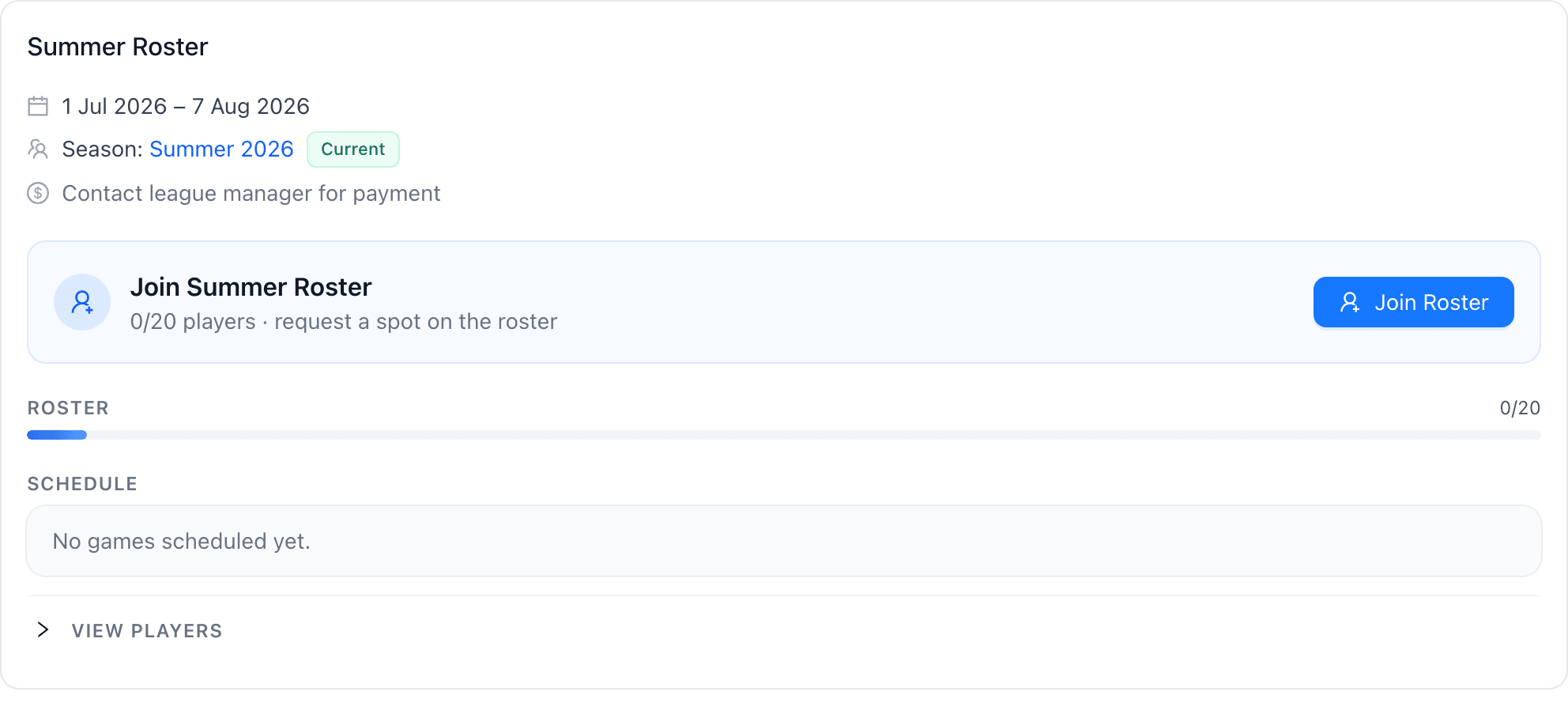
Open the team’s page and look at the roster card for the current season. If the roster has open spots and you’re signed in, you’ll see an invitation banner with the season name, how many players are on the roster, and a Join Roster button.
Tell the team how you play
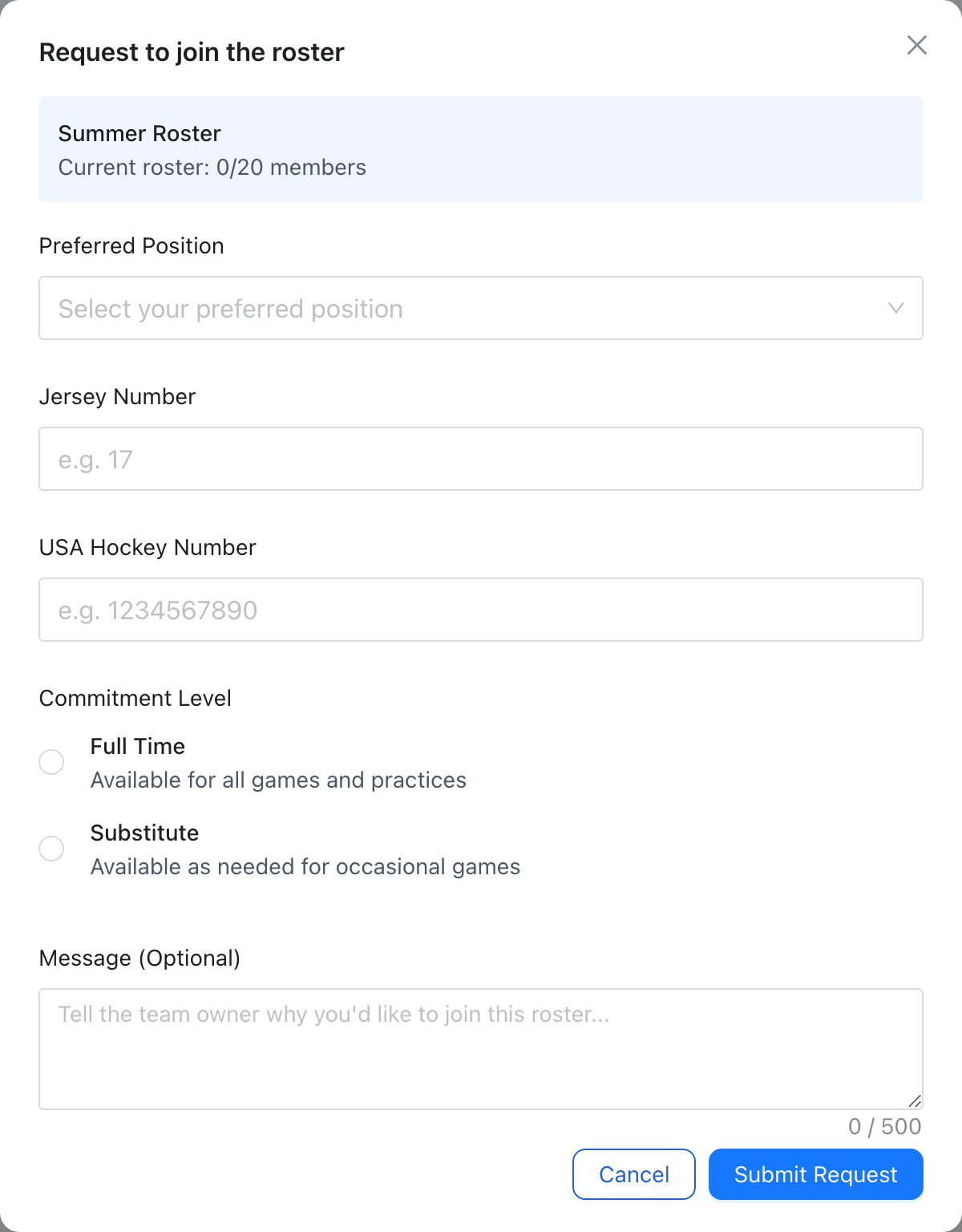
The join request asks for your preferred position, jersey number, and commitment level — full-time or substitute — plus an optional message to the team owner, so the manager knows how you fit before approving.
The team reviews your request
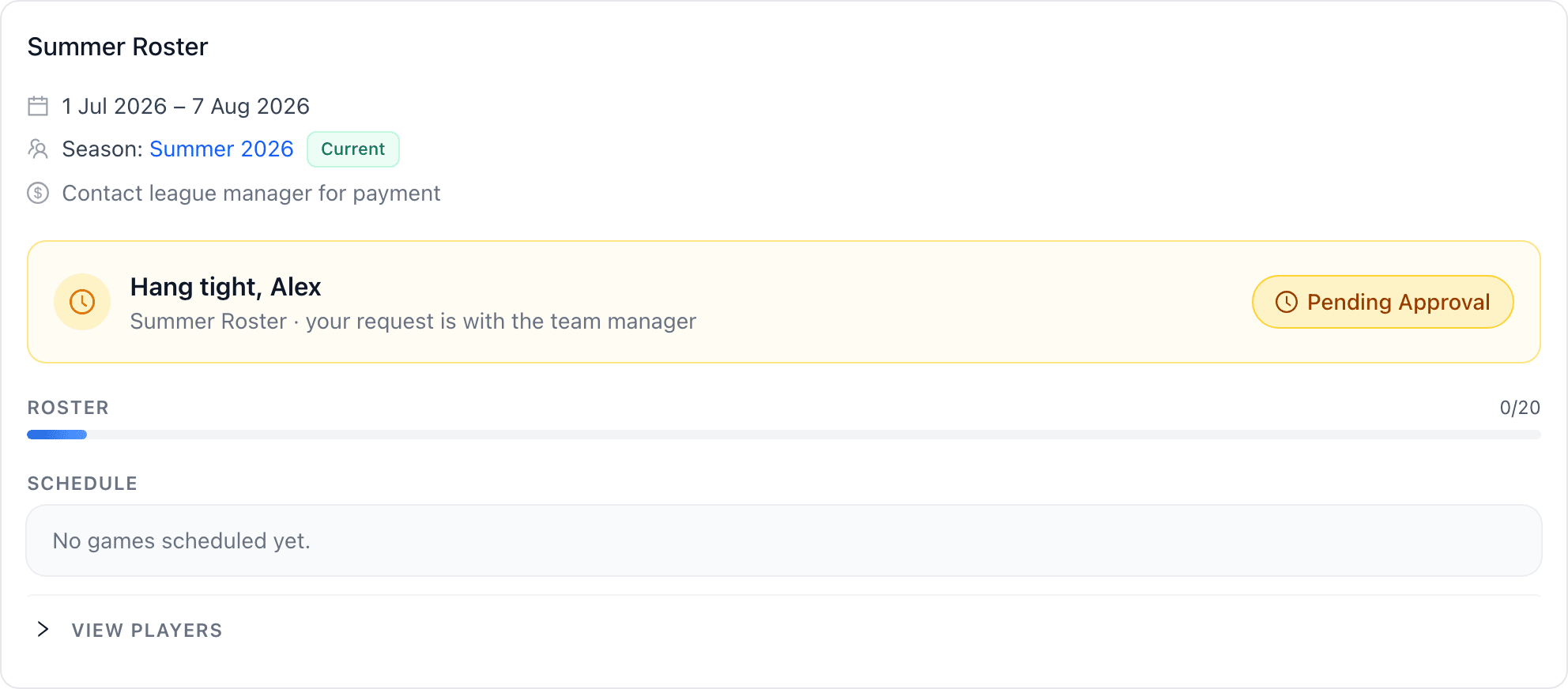
While the team manager reviews your request, the banner switches to an amber waiting state so you always know it went through. There’s nothing else you need to do — you’ll be notified when the team decides.
Some leagues double-check
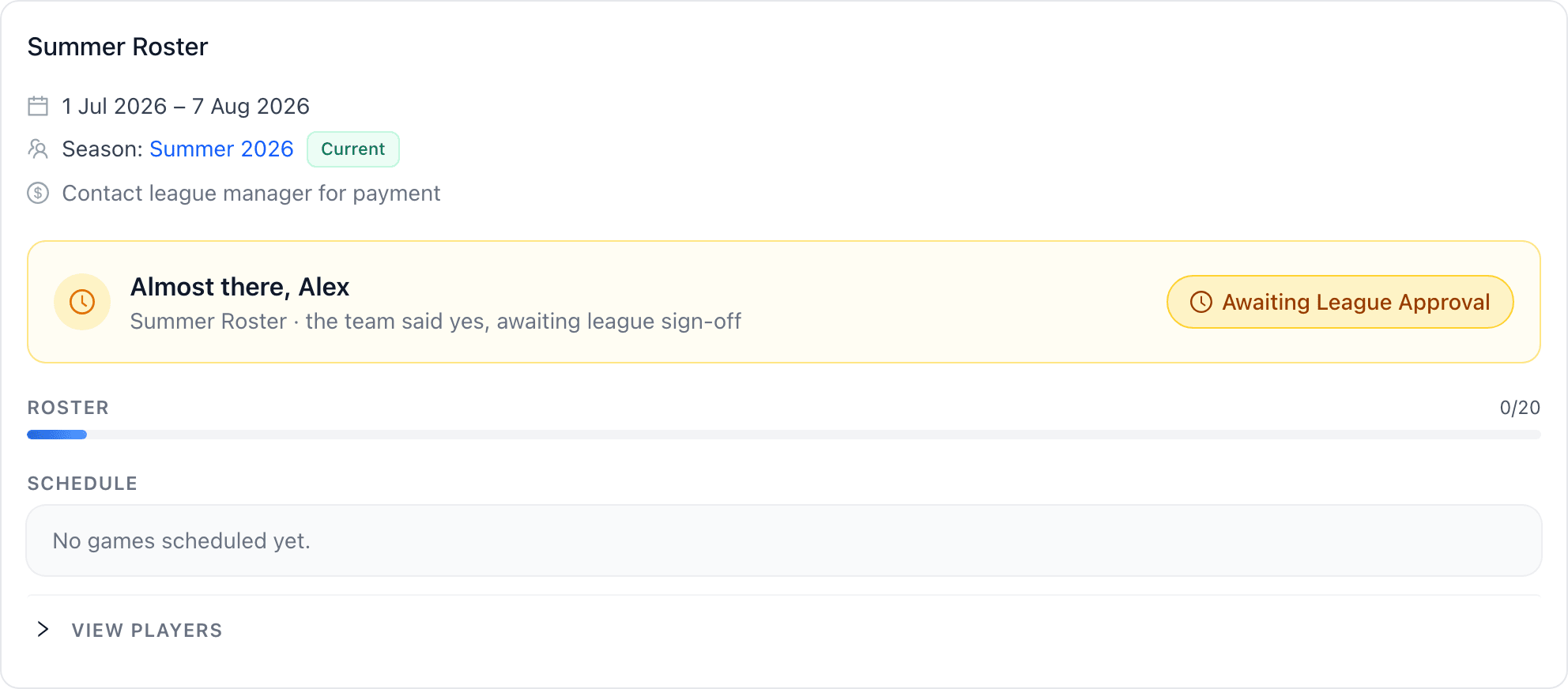
In leagues that require it, there’s a second step after the team says yes: the league or facility confirms the addition. The banner tells you the team approved and the league is finishing up.
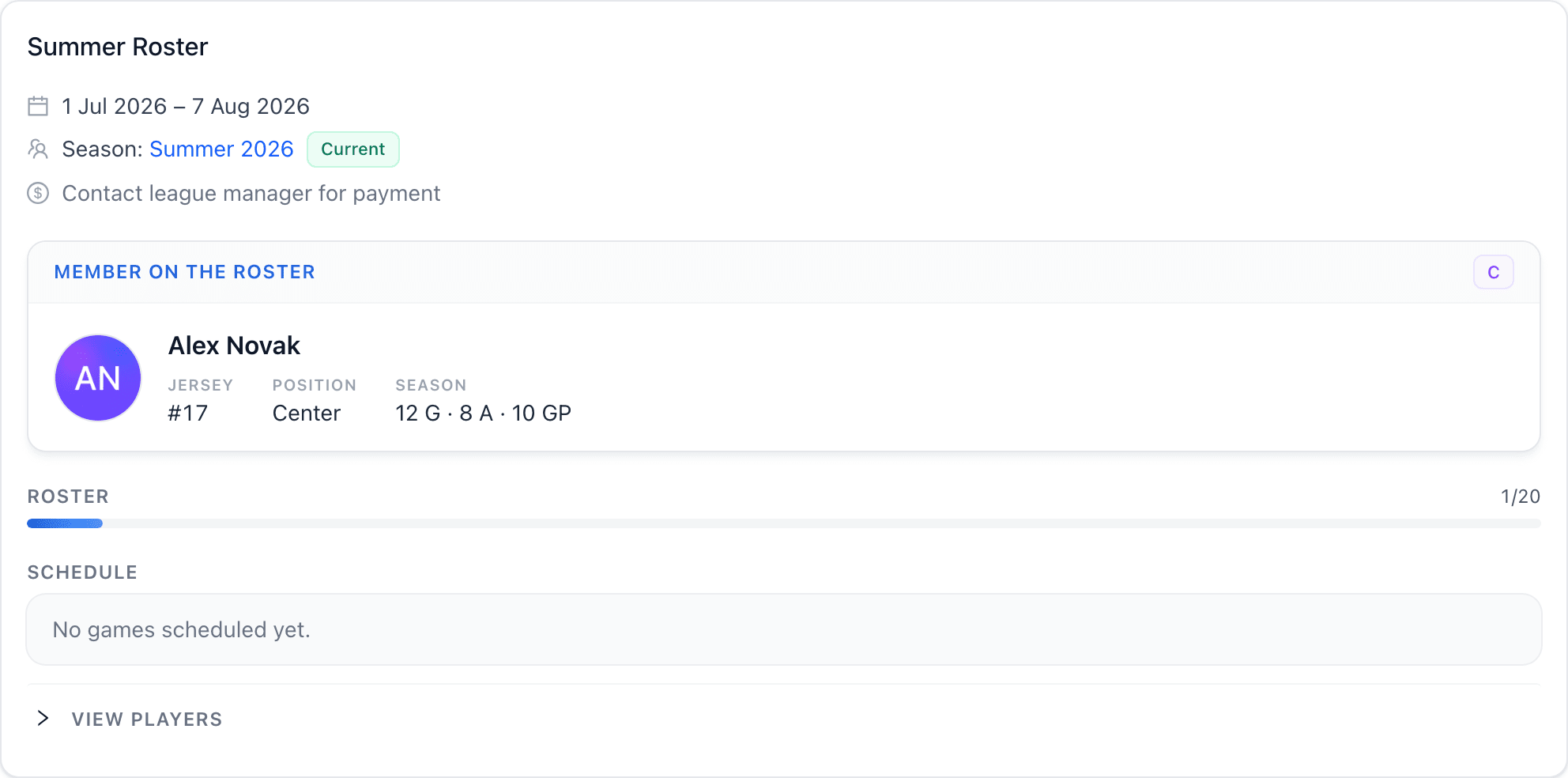
You’re on the roster
Once you’re approved, the banner becomes your membership card: jersey number, position, and your season stat line as you play games, plus captain and alternate tags if you wear a letter.