
Facility Operators
Create a league, seasons, and divisions
Set up a league from scratch: create it in the facility console, add a season with dates and roster limits, and organize teams into skill-based divisions.
Open the Leagues view in your facility console
From your facility page, open the management console and choose Leagues. This is home base for every league you run: headline counts up top, then a card per league. Facility owners, managers, and anyone you add as a league manager can work here.
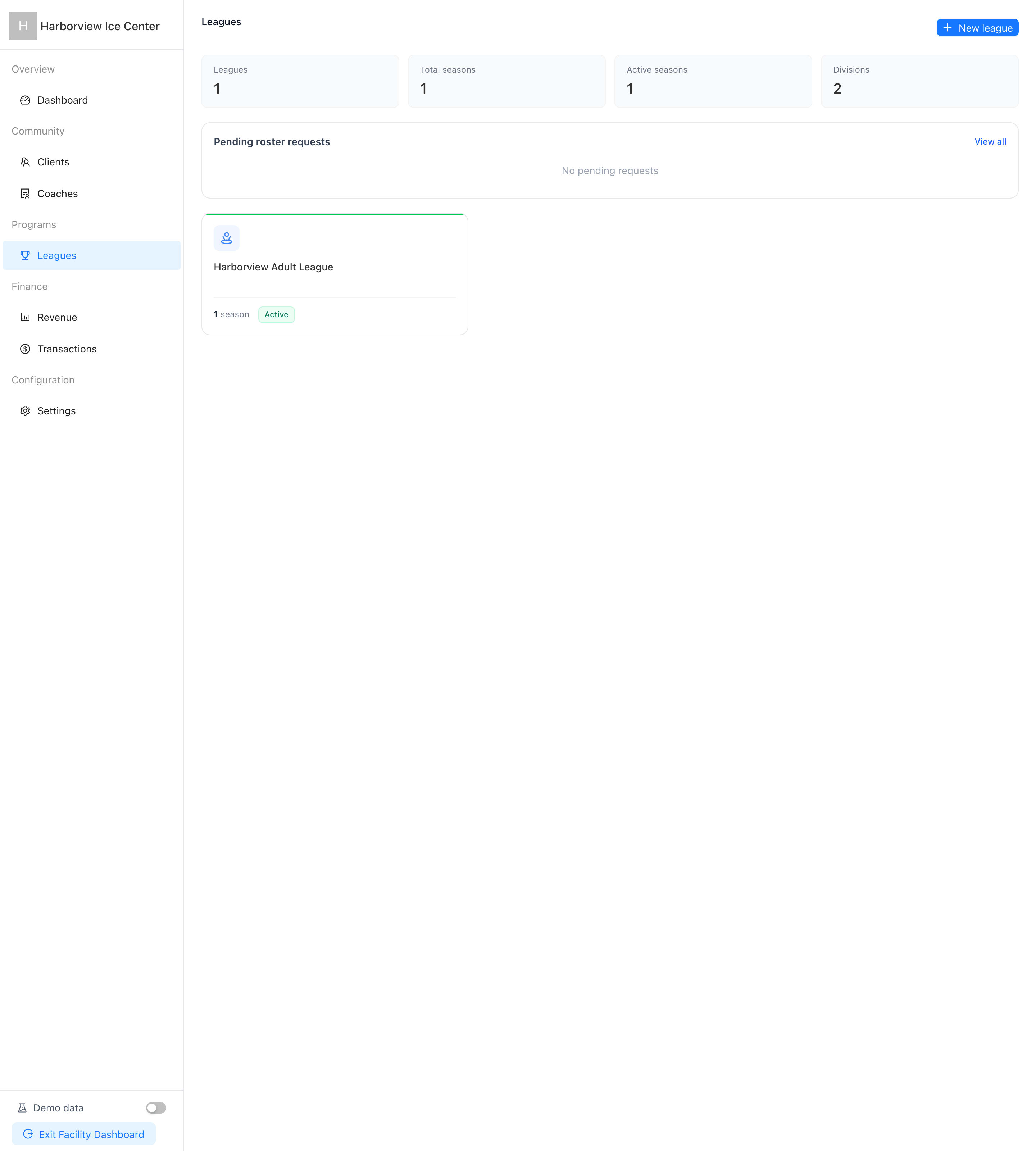
Create the league
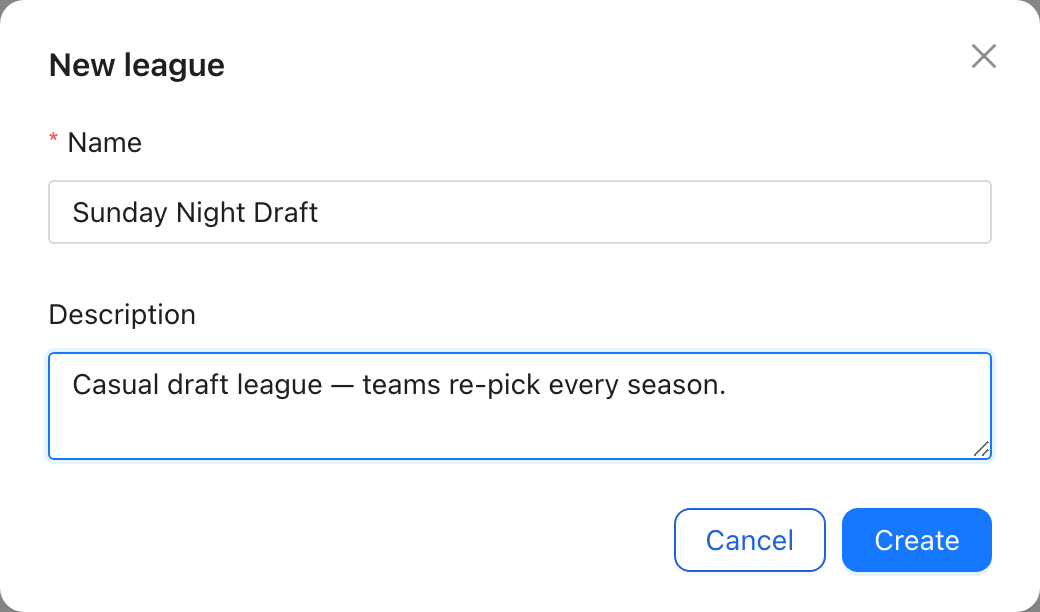
Click New league, give it a name players will recognize (this is what shows on the public facility page), and an optional description. A league is just the container — seasons carry the dates, fees, and rosters.
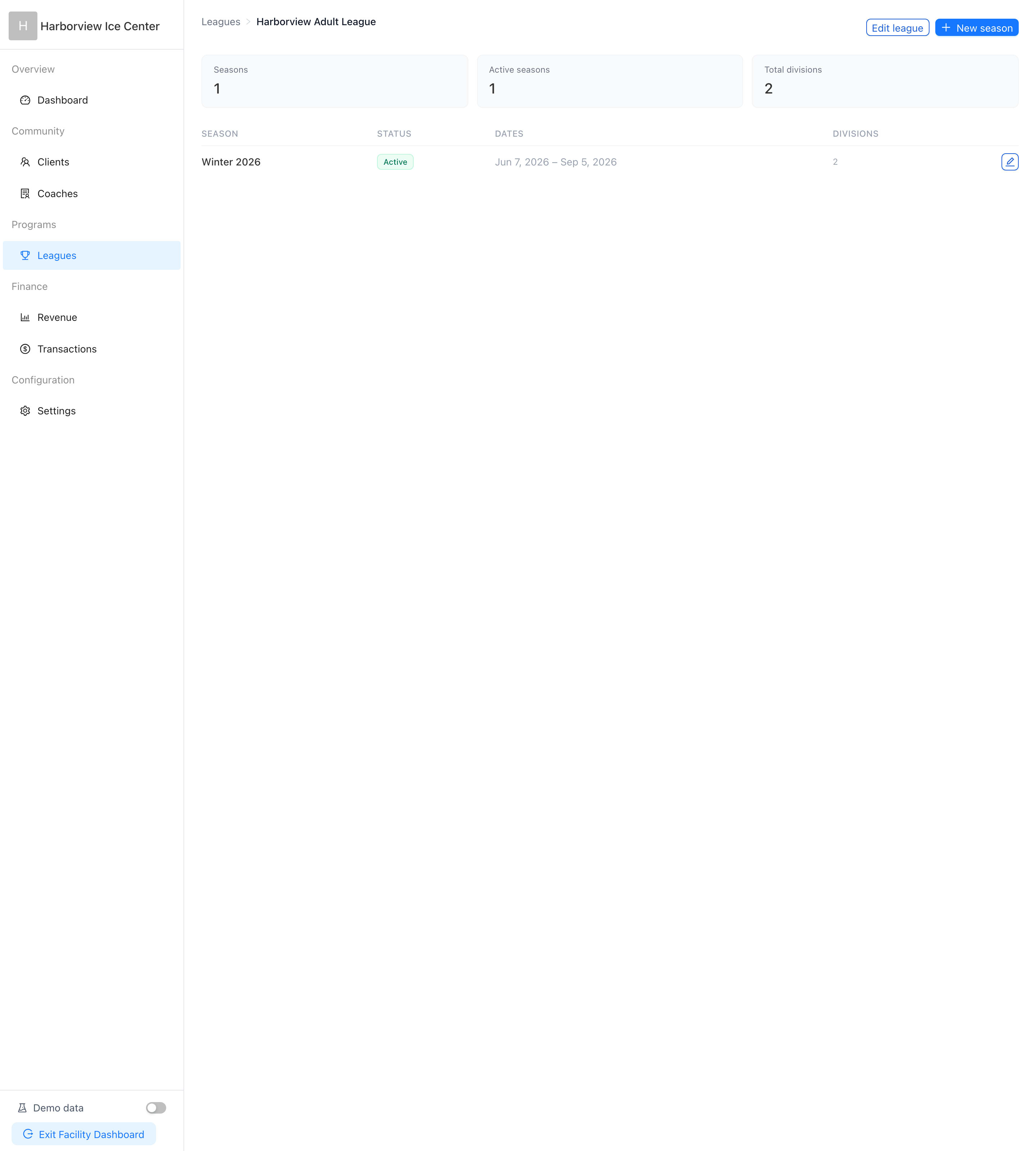
Add a season
Open the league and click New season. Set the start and end dates, the maximum roster size that applies to every team, and whether roster joins need a second approval from the facility after the team accepts. Season fees are configured here too — see the season payments guide.
Split the season into divisions
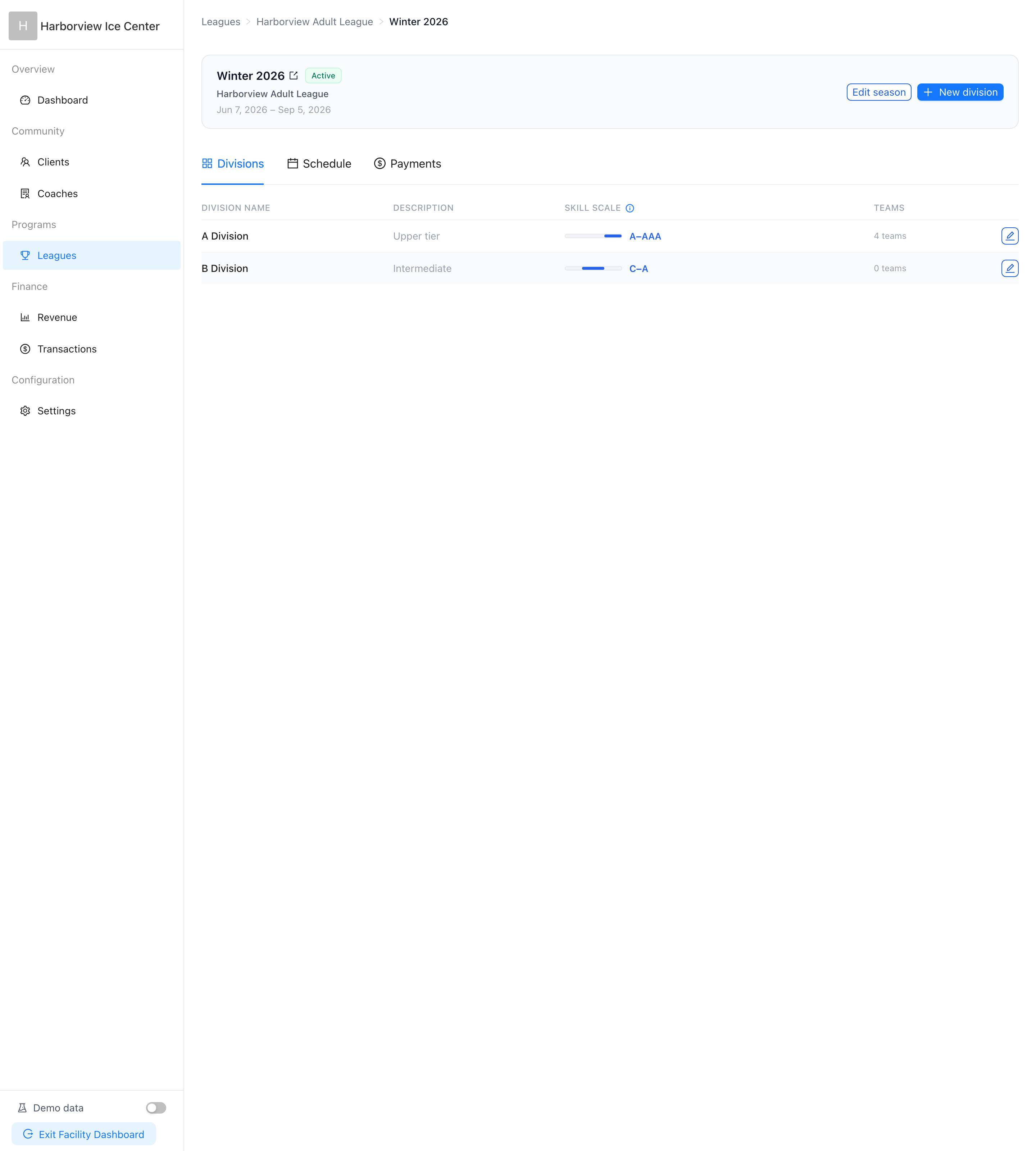
Inside a season, the Divisions tab organizes teams by skill. Each division maps onto the universal 1.00–6.00 skill scale, so a "B Division" at your rink lines up with equivalent tiers elsewhere. Teams are assigned to a division when their roster is created or matched.
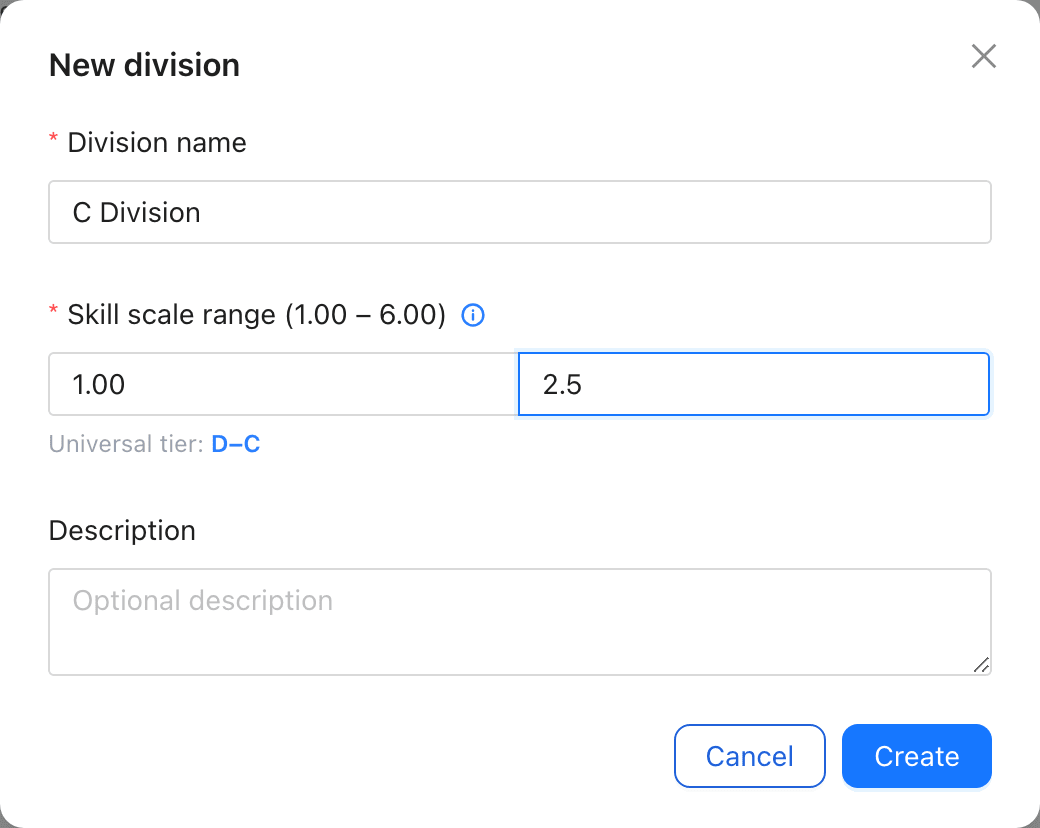
Name the division and set its skill range
When you create a division you give it your local name and a min–max range on the universal scale. The tier readout under the fields shows how that range translates, which keeps cross-facility matchmaking and player placement honest.
Not a facility manager? Run leagues through a community
Communities can organize leagues at any facility. Create the league from your community console and pick the host facility — you get the same dashboard facilities use, with seasons, divisions, scheduling, payments, and rosters. If the facility has managers, your league shows as pending until they approve it; declining only hides it from the facility’s public listings.
